One Drive “Read-Only” remedy
Recently, Microsoft changed how our licenses for Office 365 function. In doing so, they separated accounts that were once just aliases for eachother.
Students technically now have two accounts:
Account 1: username@prescott.edu (This is the same account as @student.prescott.edu)
Account 2: username@studentprescott.onmicrosoft.com
These accounts still have the same password. OneDrive storage is no longer shared between them.
Account 2, @studentprescott.onmicrosoft.com, no longer has permissions to save files to the OneDrive. Files stored there remain, but are in a Read-Only state. Any files there need to be downloaded and then uploaded back to Account 1, @prescott.edu
If you do not have the OneDrive App installed on your computer:
Sign into the Microsoft OneDrive website with Account 2.
Download your files to your computer.
Signout of Account 2.
Sign in to Account 1
Upload the files back to the OneDrive browser.
If you have the OneDrive App and it’s currently logged into Account 2 (@studentprescott.onmicrosoft.com)
Log into the OneDrive website and sign in with Account 1 (@prescott.edu)
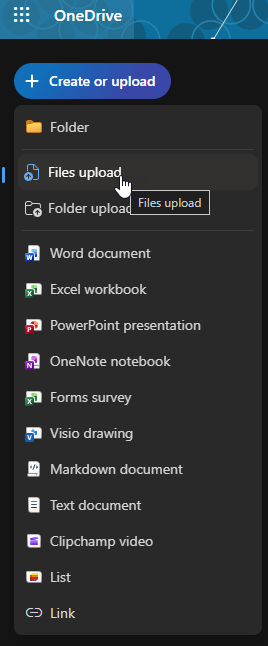
Click the “+ Create Or upload” button.
Click “Files Upload”
Select all of the files from the OneDrive App folder and then click OK to start uploading everything.