
As we transition away from Zoom for most things, here’s a few guides that will help you get this process going.
Existing Zoom Meeting to Google Meeting Transition
This is an interactive step-by-step tutorial. Very simple but effective.
https://www.iorad.com/player/1784843/Changing-a-Zoom-Meeting-in-to-a-Google-Meet#trysteps-1
How To – Google Meet vs Zoom
This is a glossary of different features that Google offers, as well as a how-to guide for each one.
https://support.google.com/a/users/answer/9367363?hl=en
Google Meet Training
This guide is good to give to people attending your meetings and gives commands they can use.
https://support.google.com/a/users/answer/9282720?visit_id=638308248727359241-2901537673&rd=1
Google Meet Skills Course
This link is a set of training courses on Google Meets with more deep dives into each feature.
https://www.cloudskillsboost.google/course_templates/198
Get Started With Google For Education
This link contains more apps besides Google Meets that may be beneficial to you.
https://edu.google.com/intl/ALL_us/for-educators/product-guides/?modal_active=none
Present during a video meeting
Tip: There can be a maximum of 10 simultaneous presentations in a meeting at a time.
- Join a Meet video meeting.
- At the bottom, click Present now
 .
- Select Your entire screen,A window, or A tab.
- If you present a Chrome tab, it shares that tab’s audio by default.
- To present a different tab, select the tab you want to present, click Share this tab instead.
- If you present a Slides presentation through a tab, you can control it in Meet.
- Click Share.
- Optional: To unpin your presentation and view it as a tile, click Unpin
 You can now see more participants while you present.
Helpful video: https://youtu.be/yhwytDPQ91w
Tips:
- If your camera is turned on, your video is active while you’re presenting.
- For better presentations and to prevent mirroring, share a new window or a specific tab instead of the meeting window.
- To share your audio, you must select Share a Chrome tab or Share this tab.
Stop presenting
- In the Meet window, click Stop Presenting.
- At the bottom right, click You are presenting
 Stop presenting.
Present if someone else is already presenting
- At the bottom, click Present now.
- Select Your entire screen, A window, or Chrome Tab.
- Select Present instead.
Tip: If you start to present during someone else’s presentation, their presentation will pause.
Creating a permanent Meet link
Google Meet doesn’t promote permanent Meet links, but there is a workaround.
- Open Google Calendar and create a recurring event with no end date. Select the “Add Google Meet videoconferencing” button to generate a link. You can put it in its own sub-calendar, so you can hide it if you prefer.
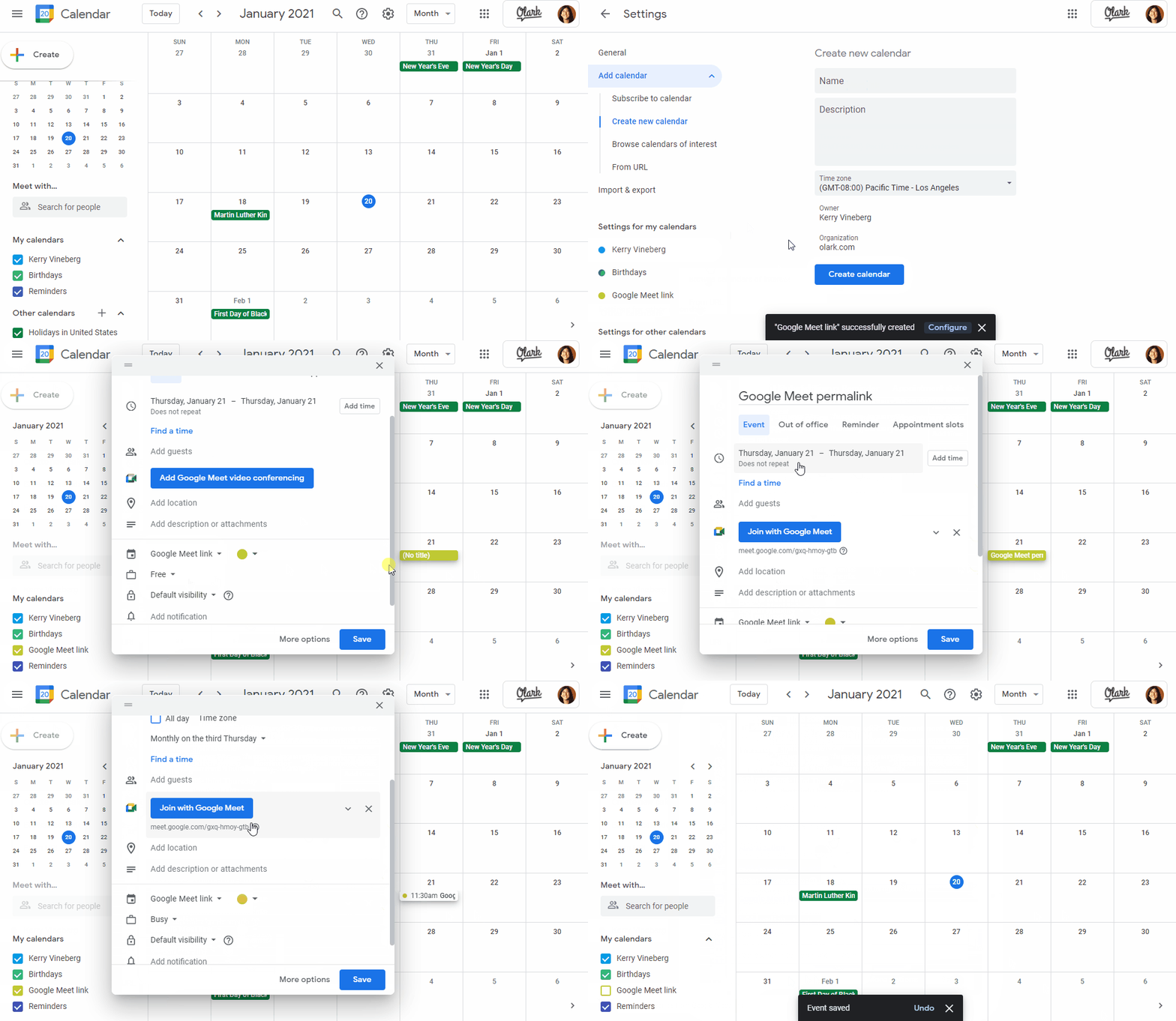
- The link created from the above action will only persist as long as the event continues in your calendar.
Improve your Wi-Fi or network performance for Google Meets
- If it appears slow and you are using Wi-Fi, try moving your computer closer to your router. This will clear up problems caused by unreliable or slow Wi-Fi.
- Run an Internet speed test to ensure you have sufficient bandwidth. Observe the bandwidth over time to make sure you have a stable connection, which is required for high quality video calling.
- Here is a good speed test website:
- Reboot your router and/or modem. This will resolve any temporary issue caused by a bug in your router or modem. It may also clear up Internet speed or connectivity issues.
- Unplug your device.
- Wait another minute, then plug the router/modem back in.
- Wait at least several minutes for the connection to get back. On some routers, the router light will pulse while it reconnects and then finally turn solid when finished.
- Lowering the video resolution may help slow network connections:
- In a web browser, open Google Meets.
- Click Settings Video.
- Choose a setting you want to change:
- Camera—Select your camera device. If your camera is working, to the right of Video, you’ll see your video feed.
- Send resolution— The image quality from your device that others see. You will want to set this to Standard definition (360p)
- Receive resolution— The image quality that you see from other participants. You will also want to set this to Standard definition (360p)
- Click Done.
- It is not recommended to use public wi-fi for Google Meets because it is unreliable.
Helpful links:
- Troubleshoot video and audio quality in a meeting: